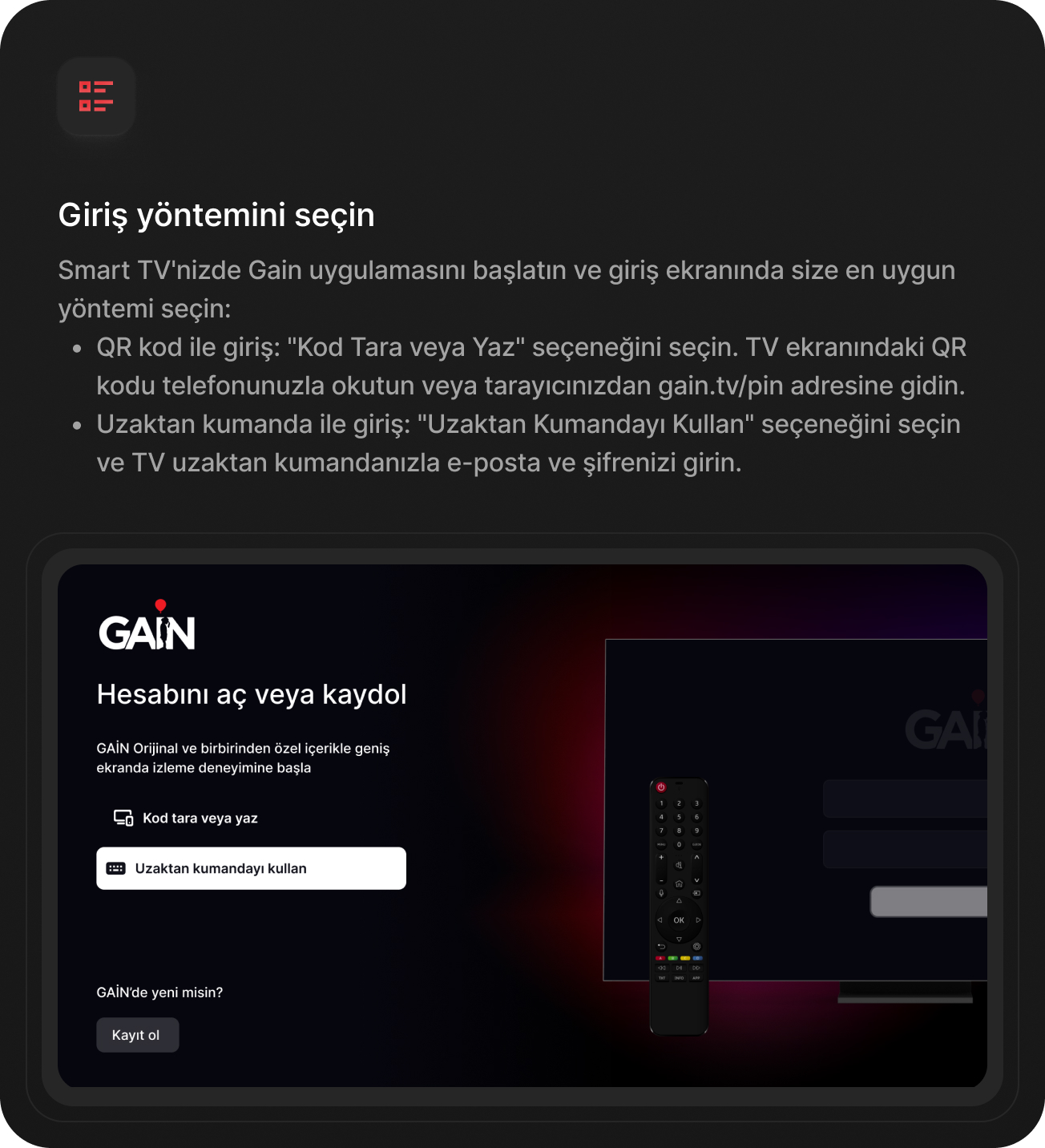
To sign in to your GAİN account on a Smart TV, you can use one of the methods below.
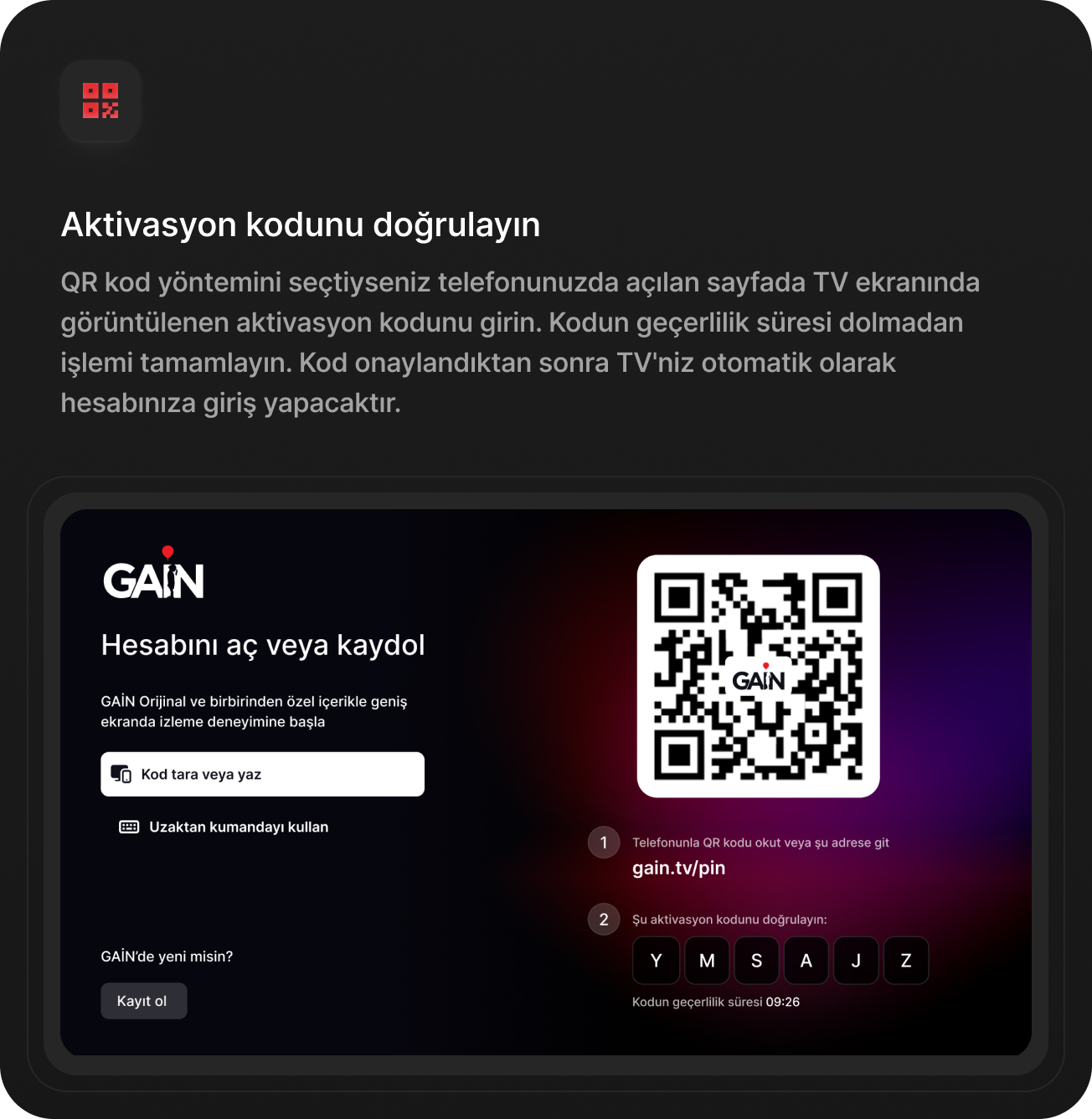
Sign in with a QR Code
- Open the GAİN app on your Smart TV.
- On the sign-in screen, select the "Scan or Enter Code" option.
- Scan the QR code shown on the TV screen with your phone's camera. Alternatively, you can go to gain.tv/pin from your phone's or computer's browser and enter the activation code shown on the TV screen in the relevant field.
- Sign in to your account and follow the on-screen prompts.
- Complete the process before the code expires.
When the activation is successful, your Smart TV will automatically sign in to your GAİN account.
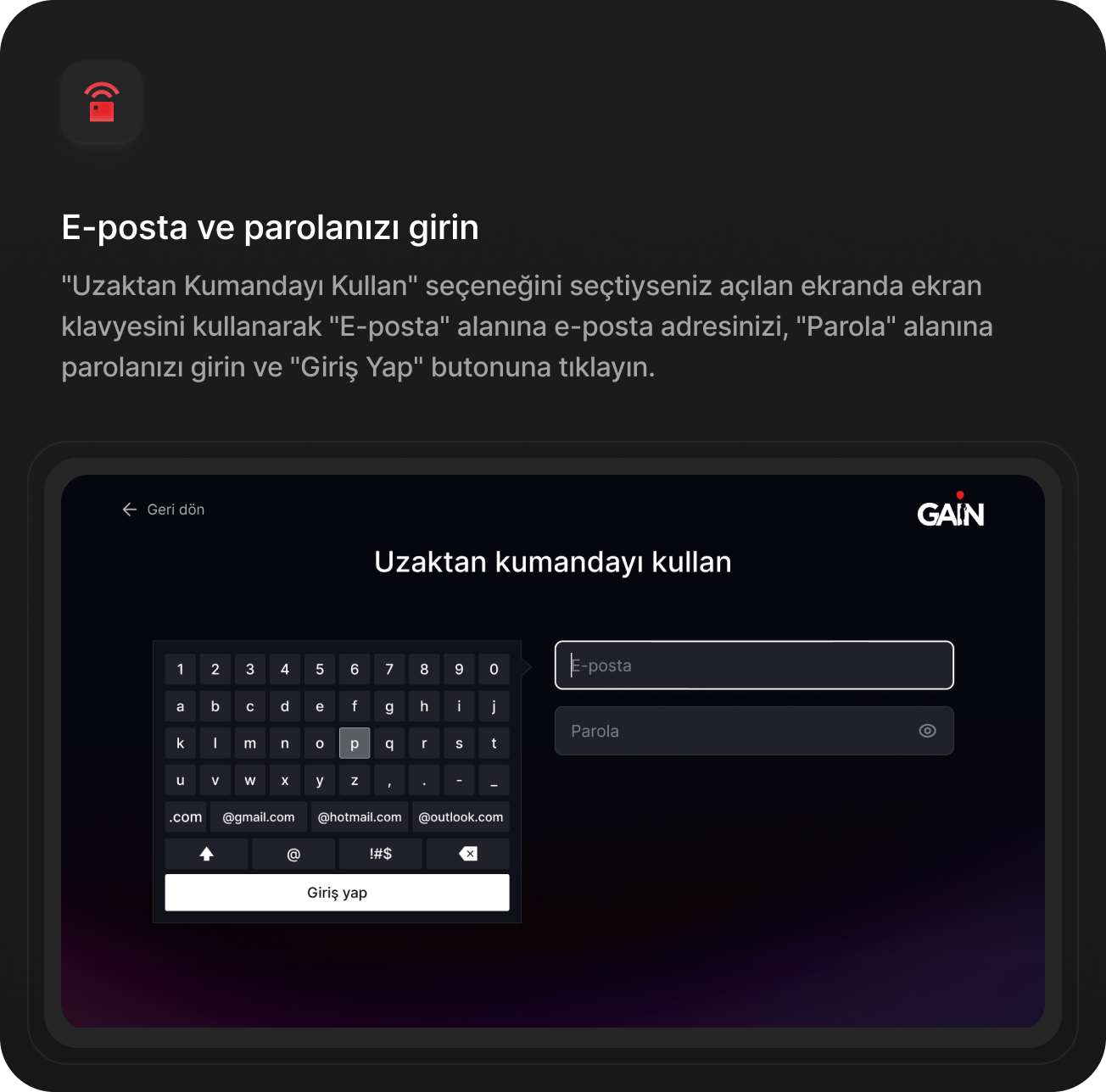
Sign in with the Remote Control
- Open the GAİN app on your Smart TV.
- On the sign-in screen, select the "Use Remote Control" option.
- Using your TV remote control, enter the email address and password registered to your account.
- Complete the sign-in process.